Checking In and Out — Driver App
Why Check In?
When you check in at a facility, Dock Watch tracks how long you're there. Your time is added to the average loading/unloading time shown to other drivers on that facility's detail screen. Over time, this gives every driver an accurate picture of what to expect before they pull in.
How to Check In
- Open the facility's detail screen.
- Tap the green Check In button.
- A popup will appear — select your purpose:
- Loading — you're picking up freight - Unloading — you're delivering freight - Loading/Unloading — you're doing both
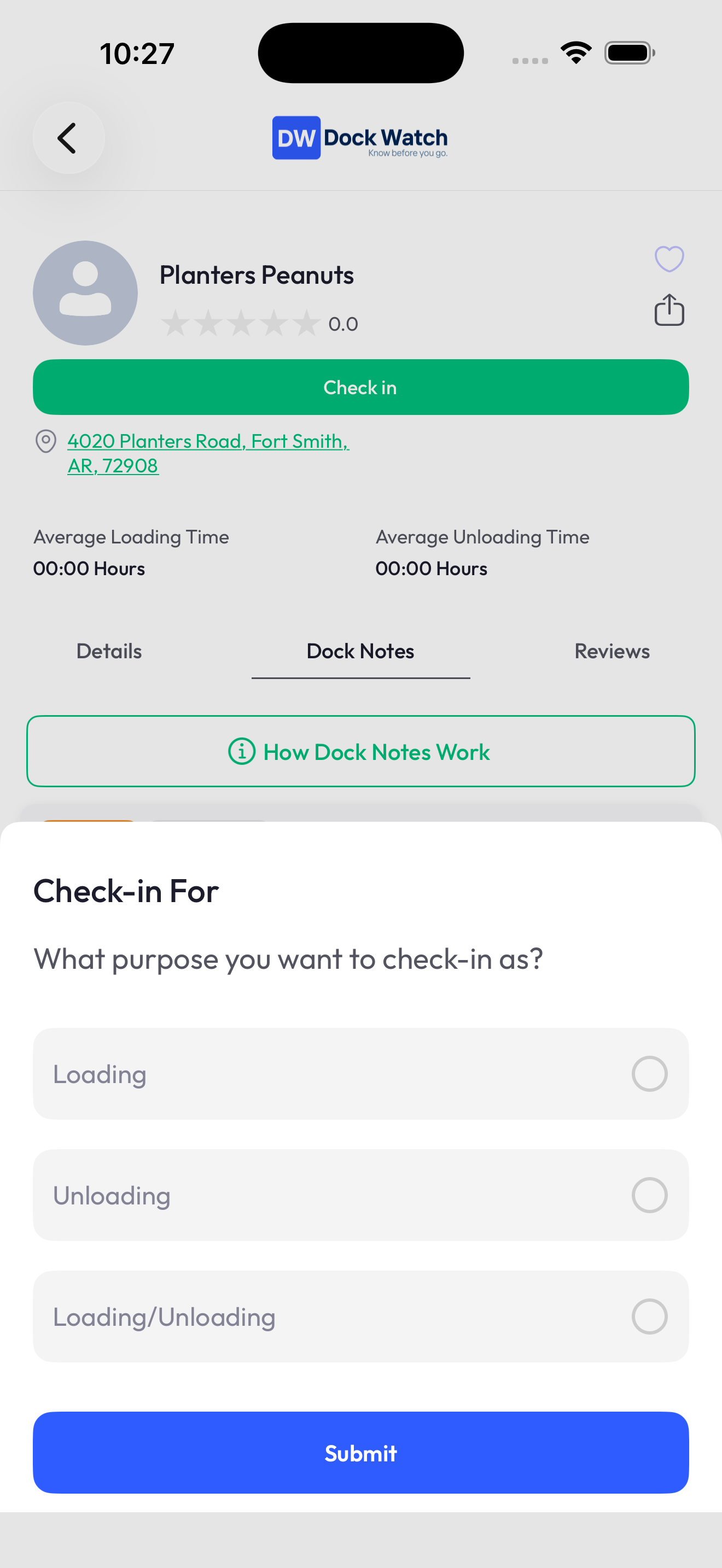
- Tap Submit.
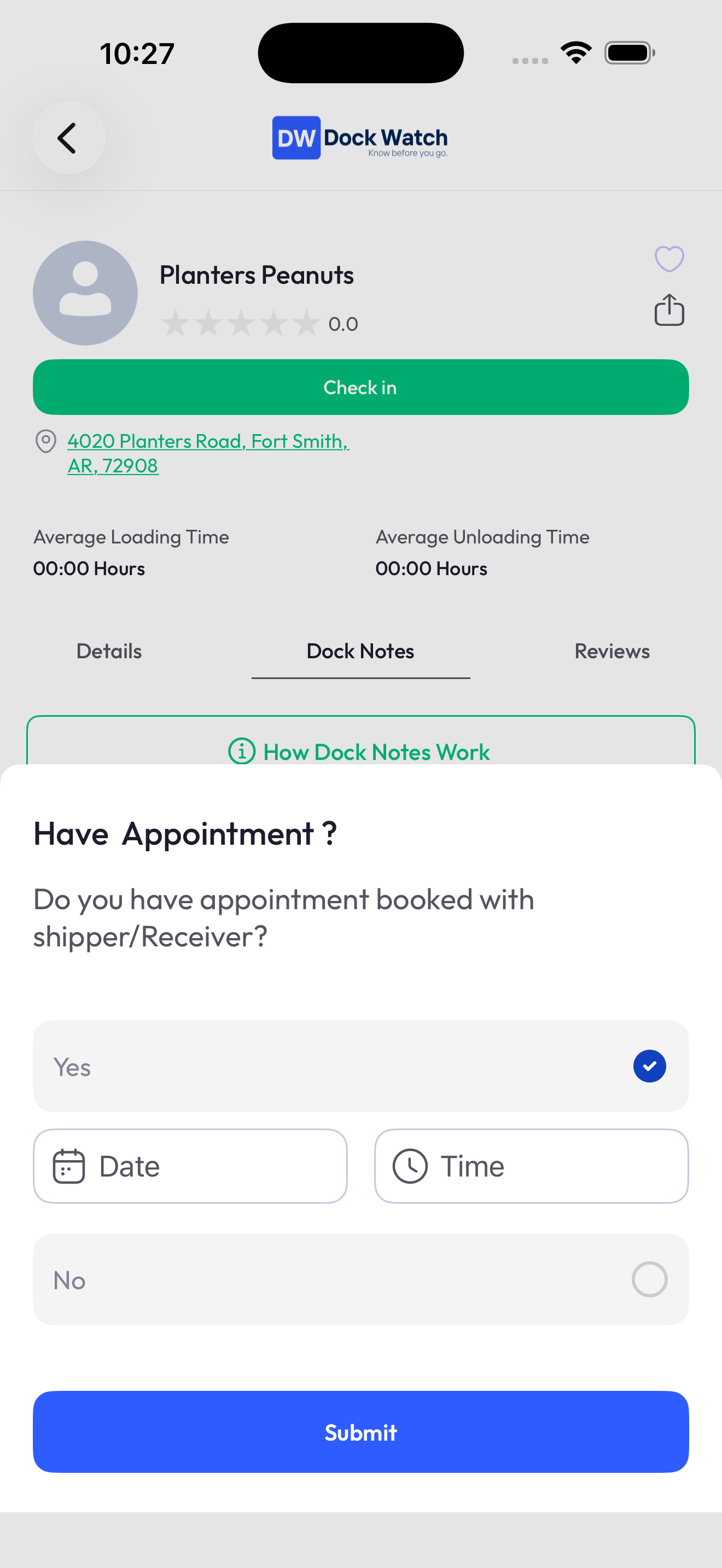
- Next, you'll be asked: Have Appointment?
- Yes — select your appointment date and time, then submit. - No — skip straight to check-in confirmation.
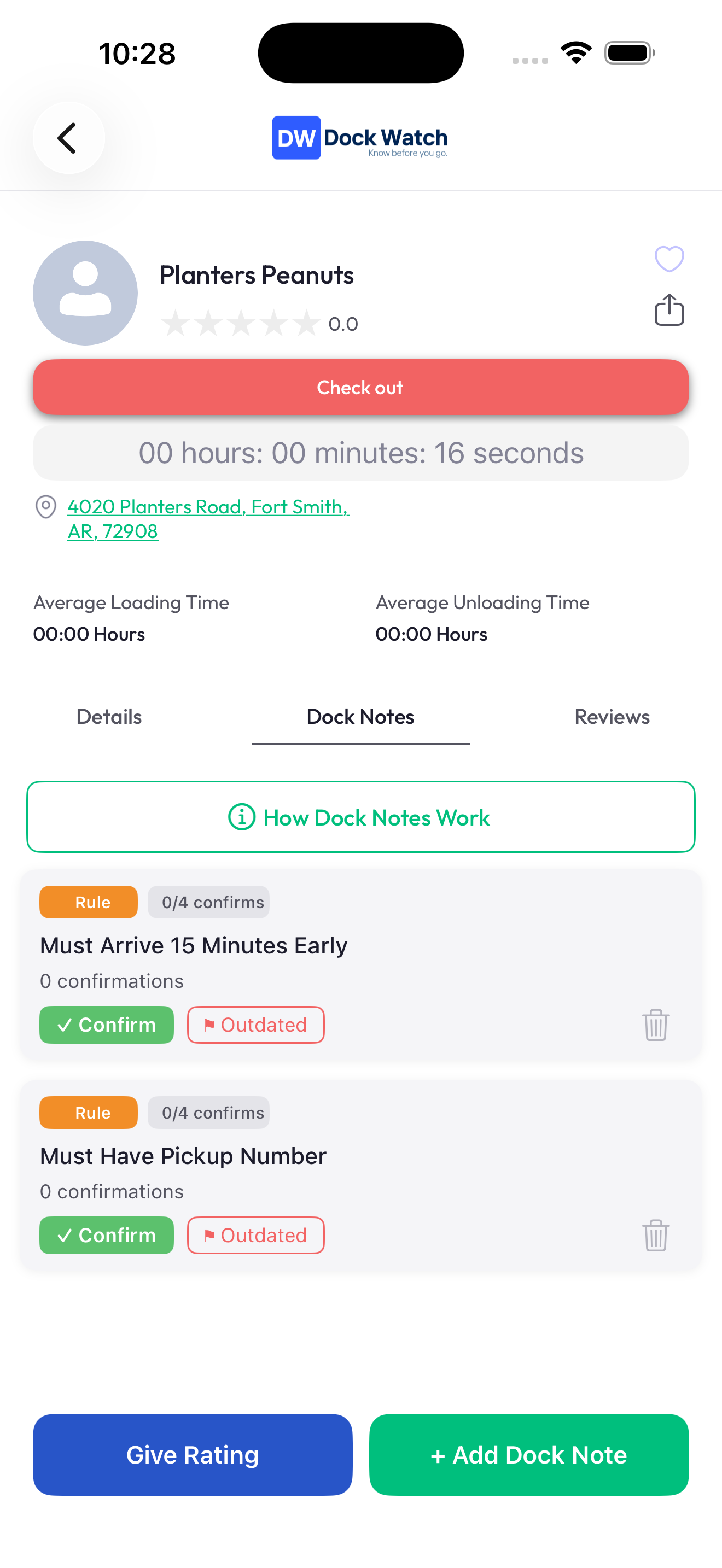
- You're checked in. A live timer (Hours:Minutes:Seconds) will appear on the screen showing how long you've been at the facility.
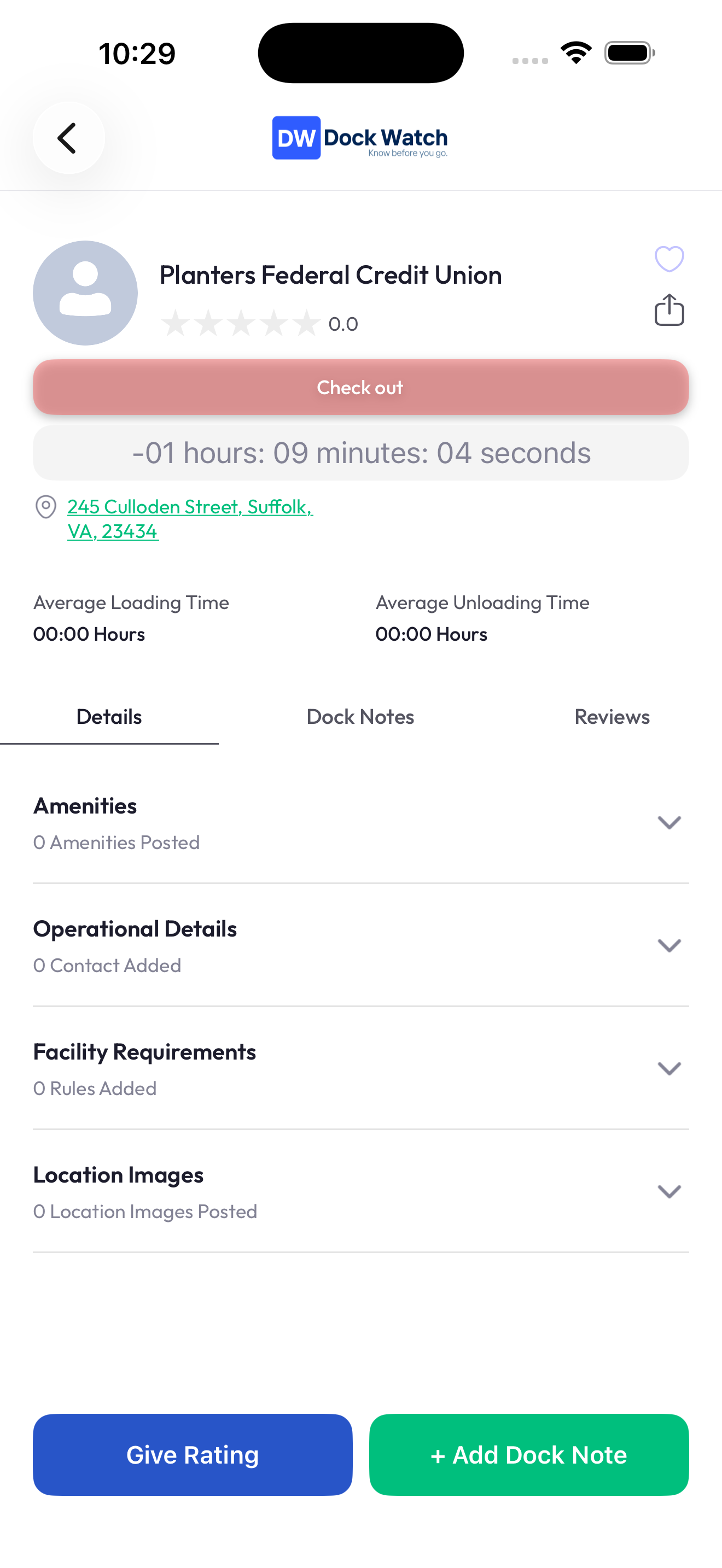
If you checked in with an appointment, the timer will count down with a negative number until your appointment time starts, then begin counting up.
How to Check Out
- When you're done and ready to leave, open the facility's detail screen.
- Tap the Check Out button (replaces the Check In button while you're checked in).
- A summary will appear showing your total loading or unloading time.
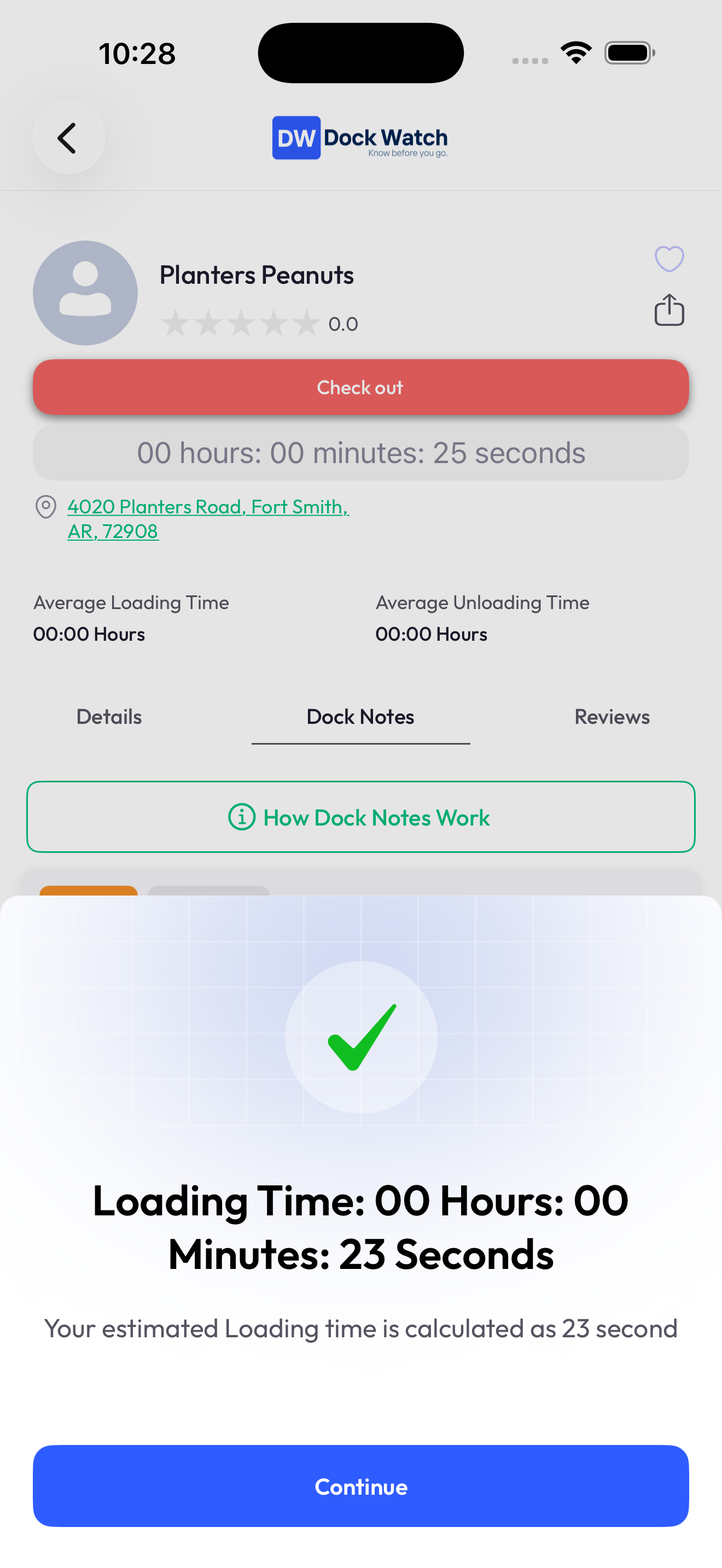
- Tap Continue. Your time is recorded and added to the average for that facility.
Notes
- You can only be checked in at one location at a time.
- If you forget to check out, the check-in will remain active until you manually check out.
- Check-in times contribute to the average loading time and average unloading time displayed to all drivers on that facility.