Searching for Locations — Driver App
The Search Tab
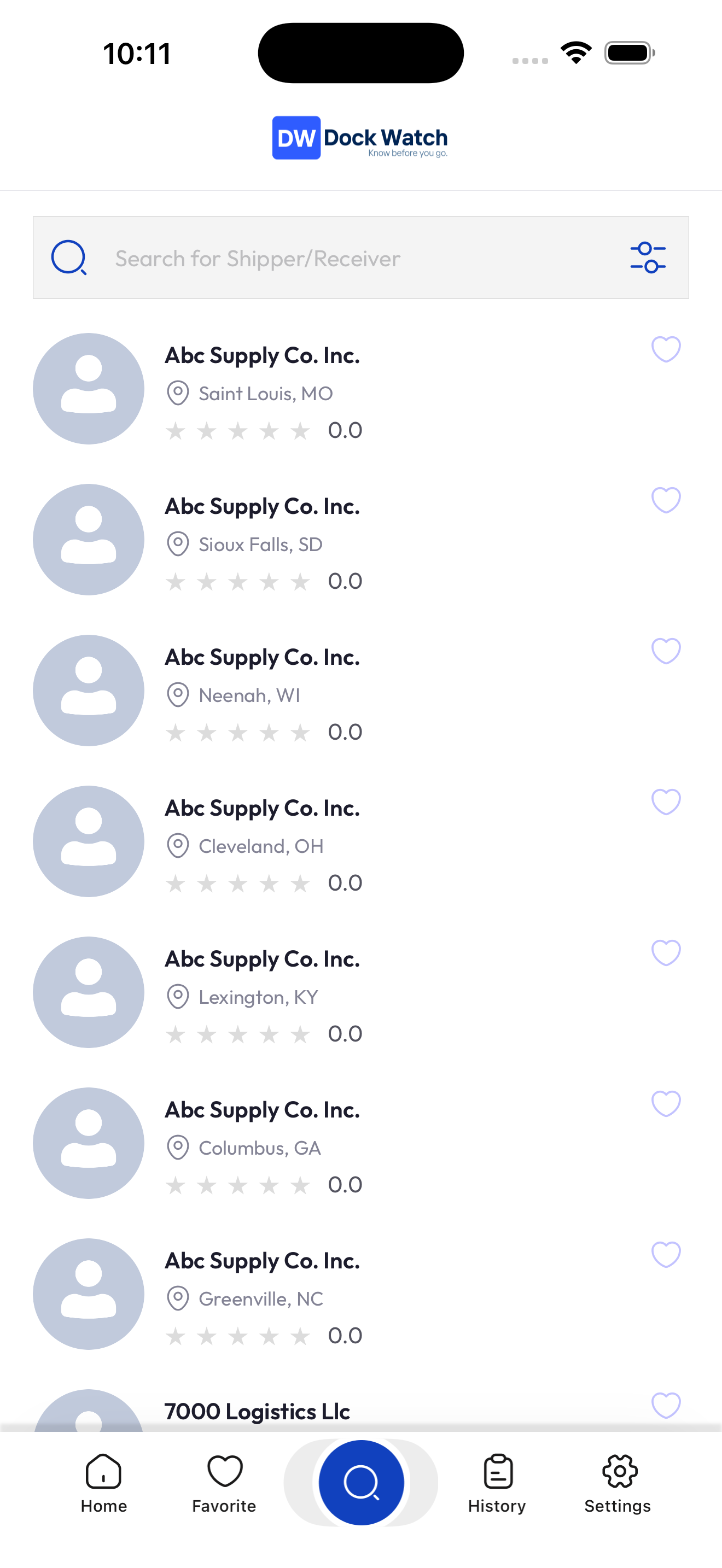
Tap Search (second tab) at the bottom of the screen to find any shipper or receiver facility.
Searching by Name or Address
- Tap the Search bar at the top.
- Start typing a company name, city, or address.
- Results appear as you type — no need to press a search button.
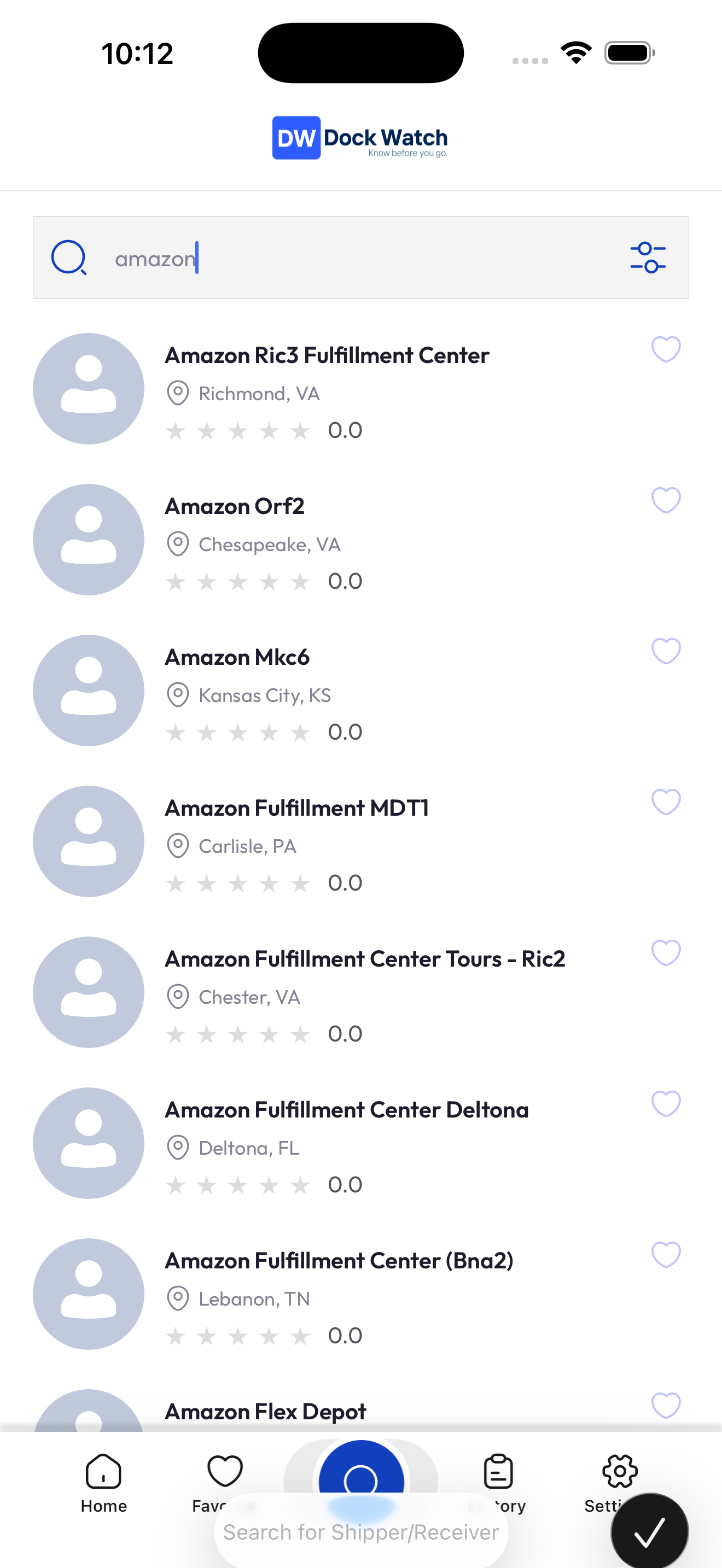
Each result shows:
- Company name
- Full address (street, city, state, zip)
- Average star rating from driver reviews
- Verified and/or Insured badge if the location has been claimed and verified
Filtering Results
To narrow results by location:
- Tap the Filter button in the top right of the Search tab.
- Enter any combination of:
- City - State - Zipcode
- Tap Apply. Results will update.
No Results Found? Google Maps Fallback
If Dock Watch doesn't have a facility in its database, the app will automatically search Google Maps and show results labeled "From Google Maps".
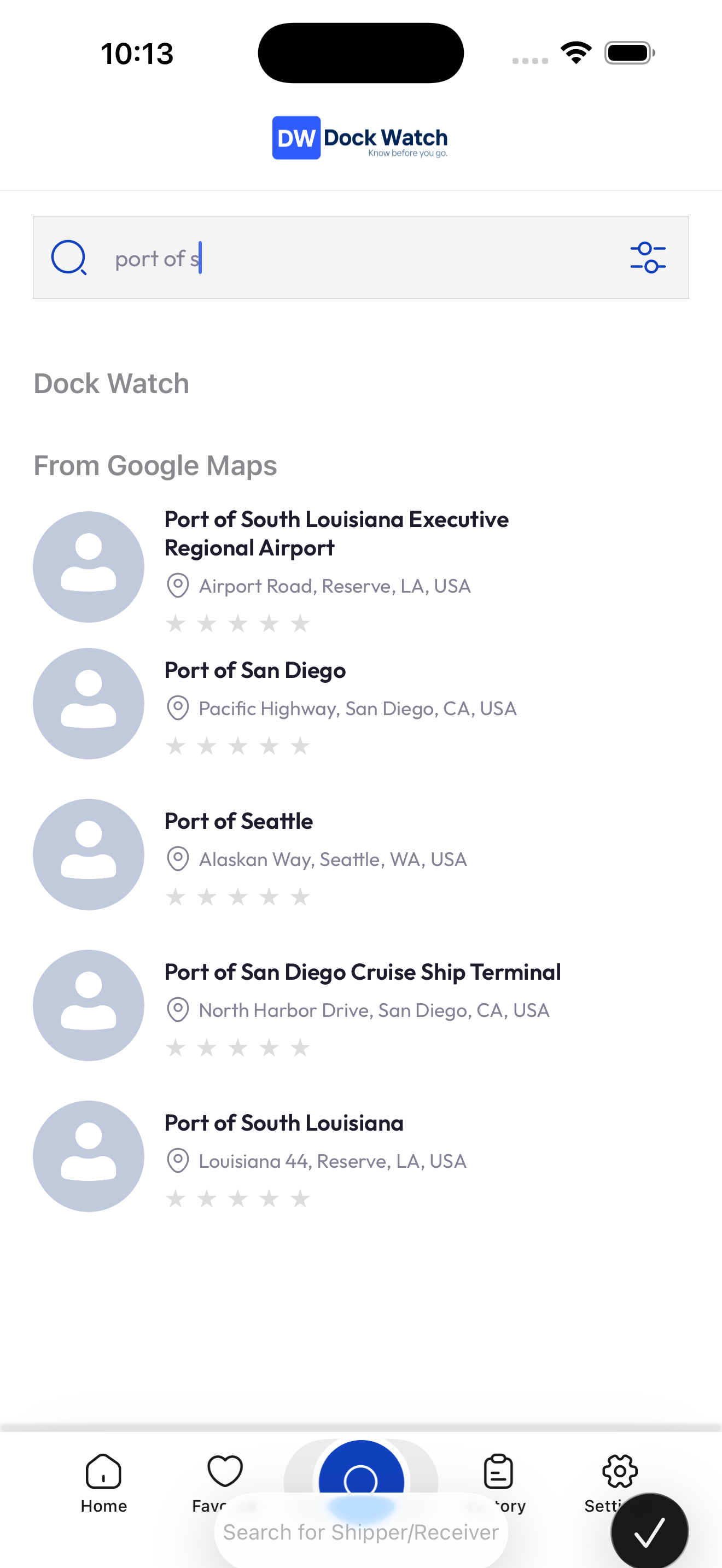
- Tap a Google Maps result to view it.
- The location is automatically saved to the Dock Watch database for other drivers to find and review in the future.
- You can check in, give a rating, or add a dock note just like any other location.
Searching from the Home Tab
The Home tab also has a search bar at the top ("Search shippers & receivers..."). It works the same way and takes you directly to the search results.
Understanding the Results List
| What you see | What it means |
|---|---|
| Star rating (e.g. 4.2 ★) | Average of all driver reviews |
| Verified badge | Business has claimed and verified the listing |
| Insured badge | Business has an active Certificate of Insurance on file |
| Heart icon | Tap to save to your Favorites |
Tapping a Result
Tap any result to open the Facility Detail screen where you can see ratings, dock notes, directions, check in, and more.