Getting Started — Driver App
Creating an Account
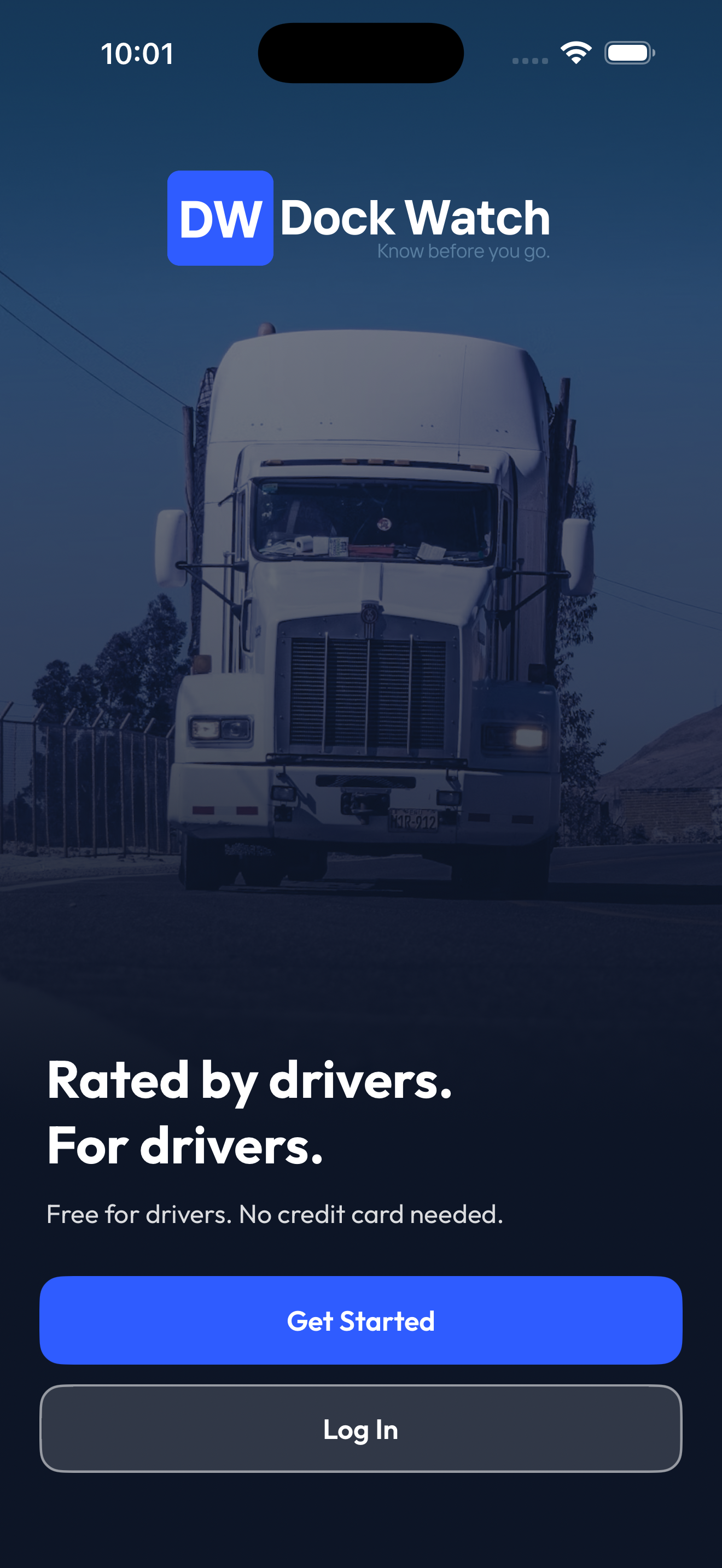
- Open Dock Watch and tap Get Started on the welcome screen.
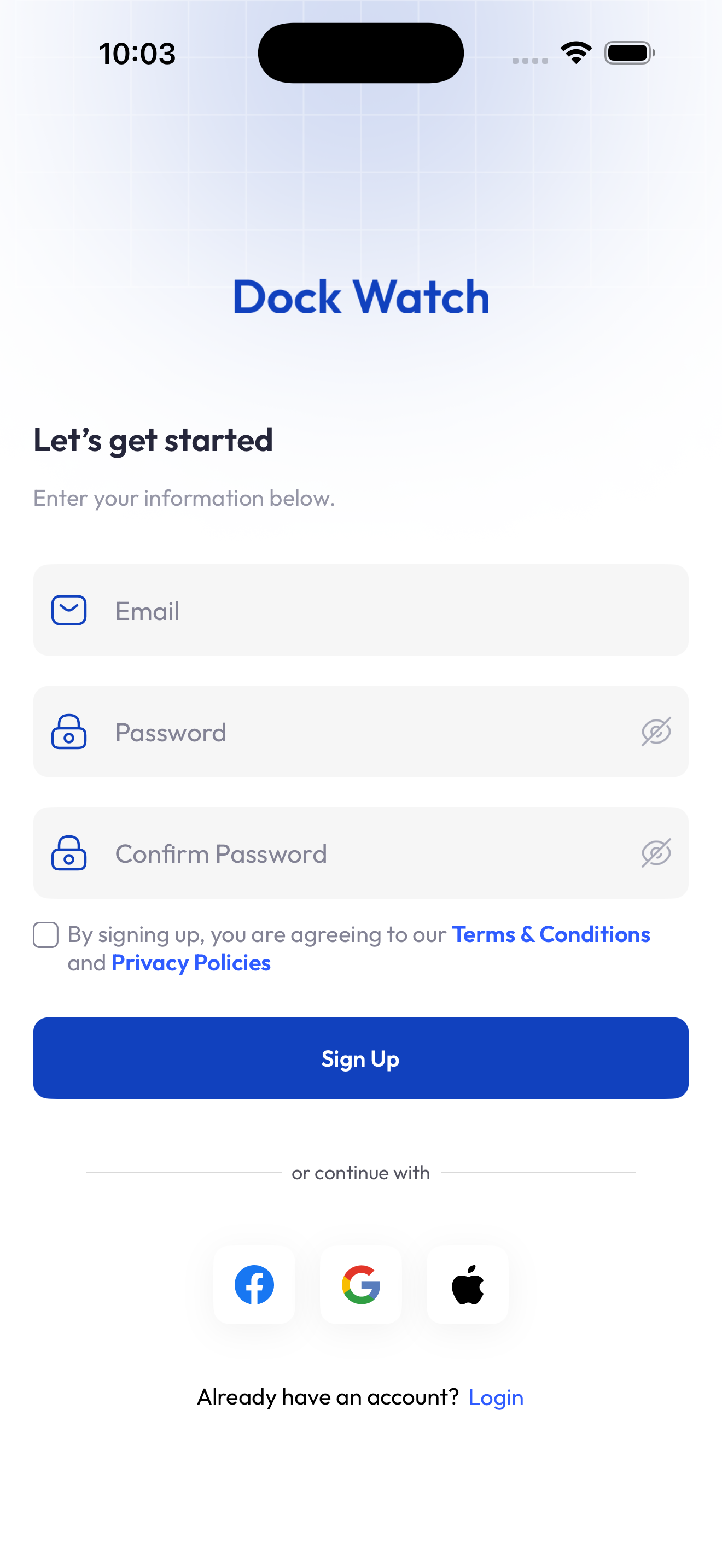
- Enter your email address and choose a password (minimum 8 characters).
- Confirm your password, then check the box to agree to the Terms & Conditions and Privacy Policy.
- Tap Sign Up.
- Check your email — you'll receive a 4-digit verification code.
- Enter the 4 digits on the verification screen. Each digit goes in its own box. The cursor moves automatically as you type.
- Tap Continue. Your account is verified and you're taken to the app.
If you don't receive the code within a minute, tap Resend OTP (available after a 30-second countdown).
Signing In
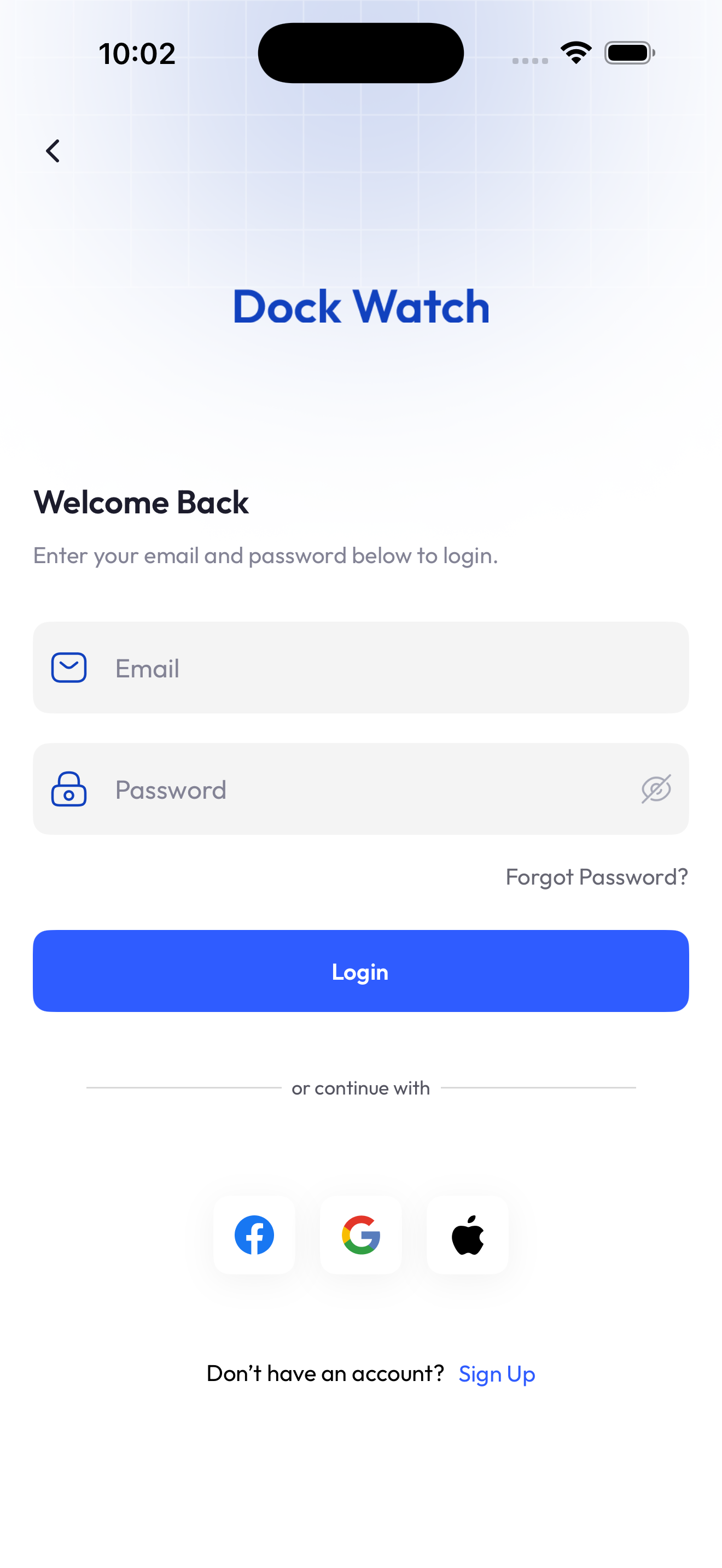
- Open Dock Watch and tap Log In.
- Enter your email and password.
- Tap Login.
You can also sign in with Facebook, Google, or Apple using the buttons below the login form.
Forgot Your Password?
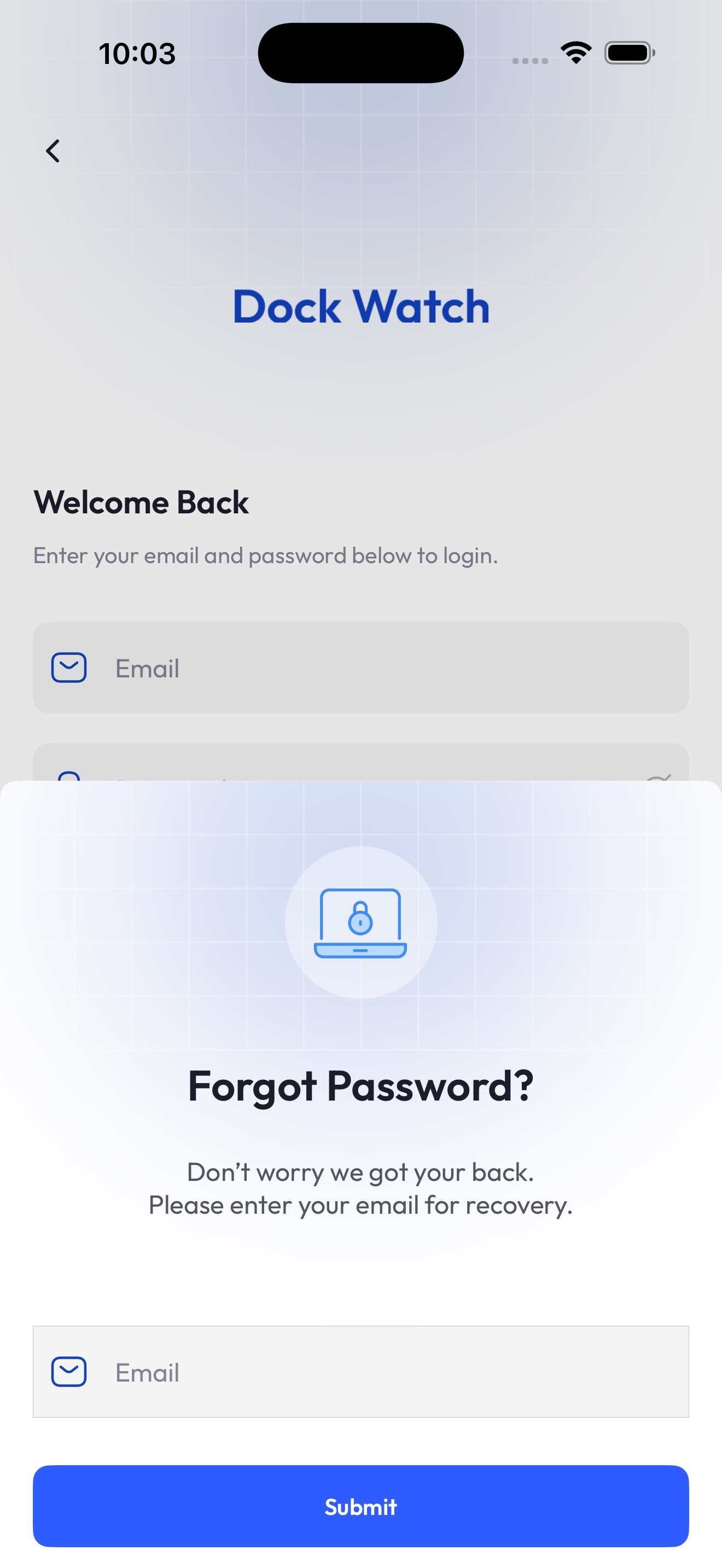
- On the login screen, tap Forgot Password?.
- Enter the email address on your account.
- Tap Submit. A 4-digit reset code will be sent to your email.
- Enter the code on the next screen.
- Choose and confirm a new password (minimum 8 characters).
- Tap Submit. You'll be taken back to the login screen.
Setting Up Your Profile
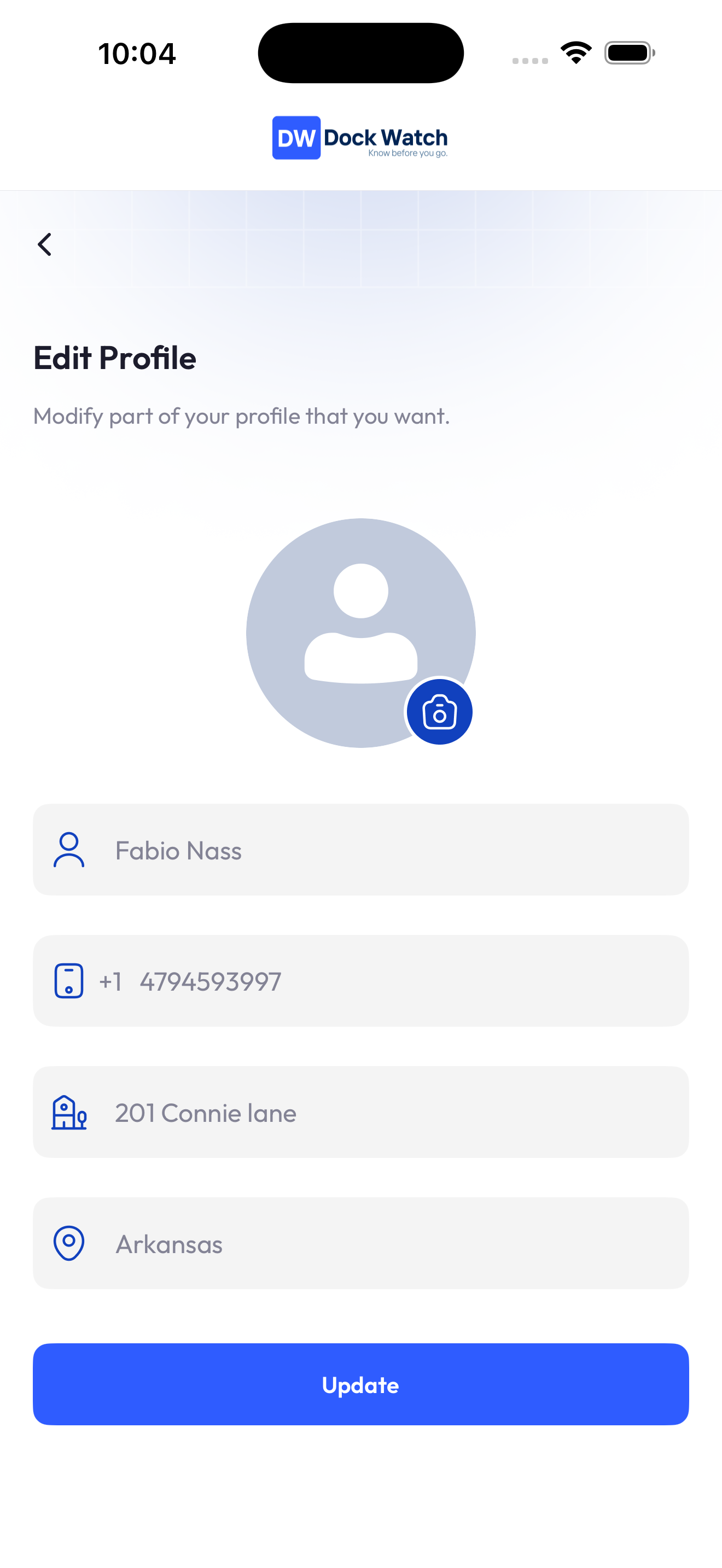
After logging in for the first time, you can fill in your profile:
- Go to the Settings tab (bottom right).
- Tap Edit Profile.
- Add your full name, phone number, address, and state.
- Tap your profile photo area to upload a photo.
- Tap Update to save.
Signing In with Face ID
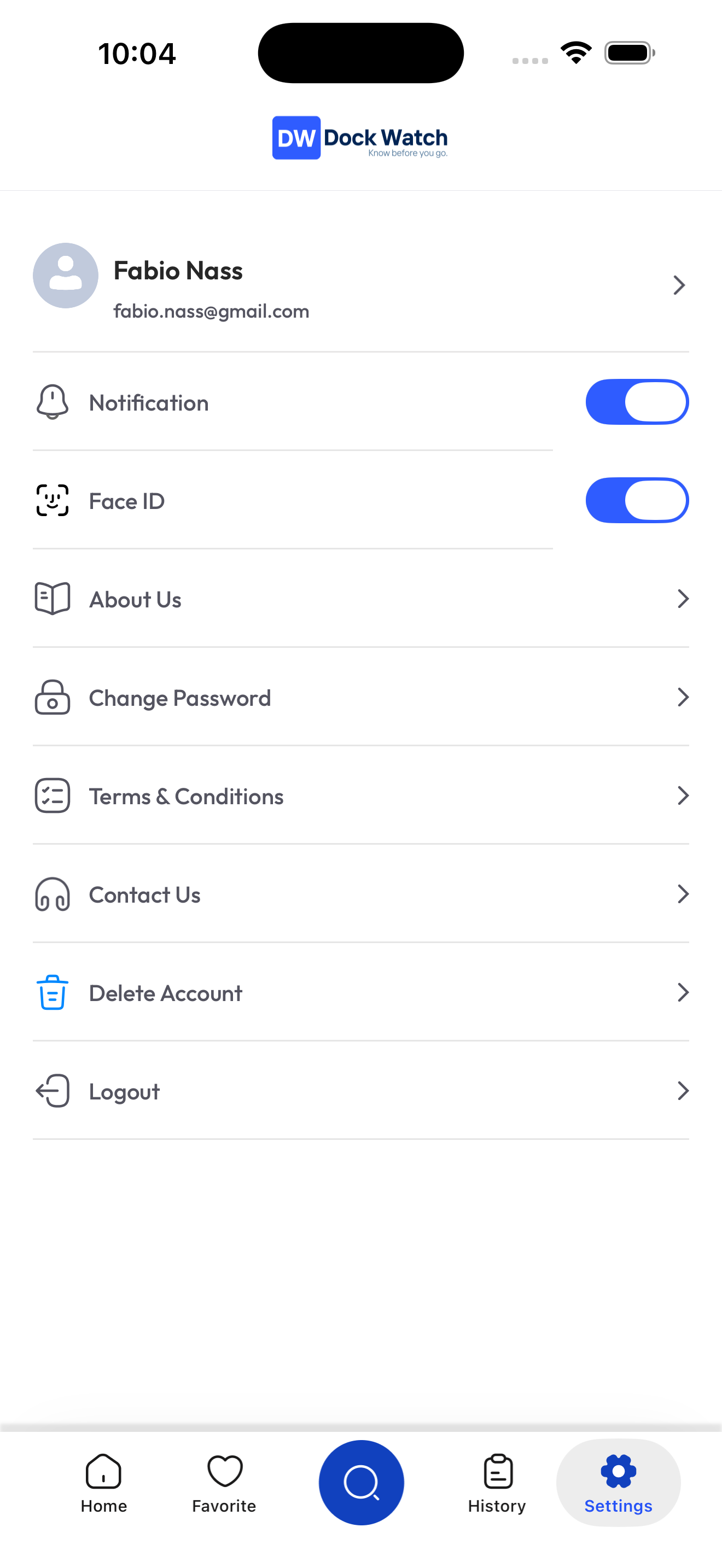
To enable Face ID for faster sign-in:
- Go to the Settings tab.
- Toggle Face ID on.
- Confirm with your face when prompted by iOS.
Once enabled, Dock Watch will use Face ID to unlock the app when you return from the background.
Signing Out
- Go to the Settings tab.
- Scroll to the bottom and tap Logout.
- Confirm when prompted.