Facility Details — Driver App
What You See on a Location Screen
When you tap a location from the Search or Home tab, you'll see the full detail screen for that facility.
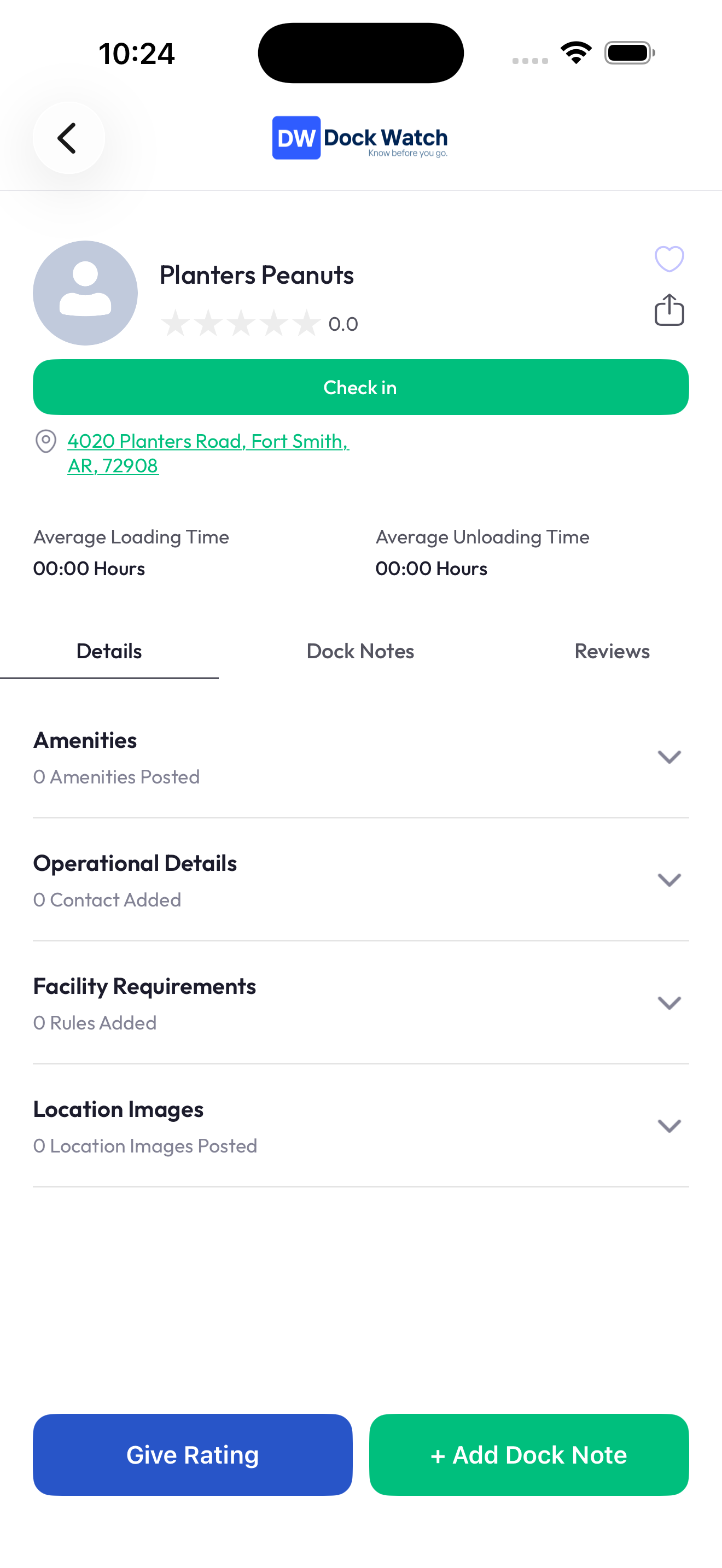
Header
- Company name and profile photo
- Average star rating and total review count
- Full address — tap to open in Maps
- Check In (green) — Start a check-in when you arrive
Action Buttons
- Give Rating (blue) — Submit a review
- + Add Dock Note (green) — Share info with other drivers
The Tabs
The detail screen has tabs that organize information:
Details
Overview of what the facility has on record:
- Amenities (restrooms, parking, etc.)
- Operational details and dock contacts
- Facility requirements and rules
- Location photos
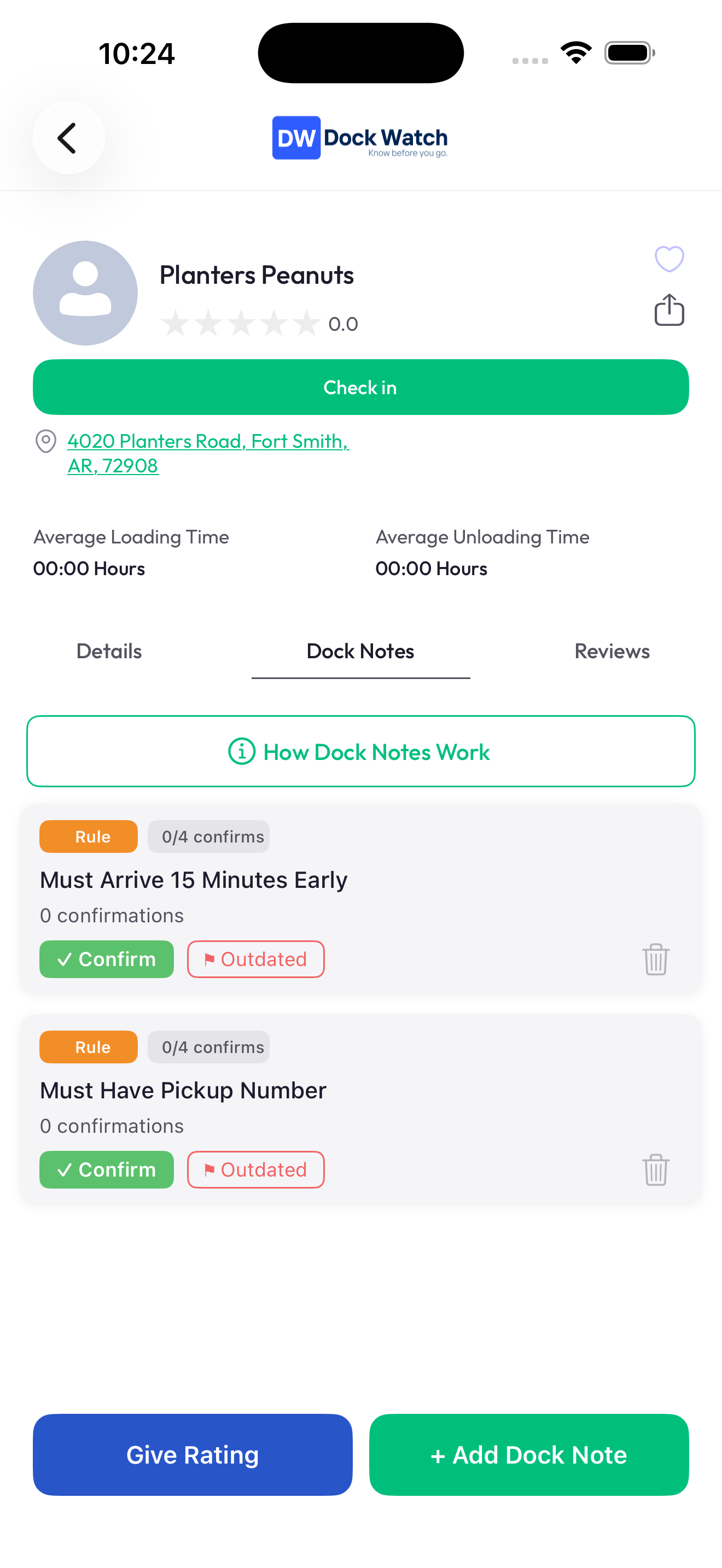
Dock Notes
Community-sourced tips from drivers who have been there — parking spots, dock contacts, directions, rules, and more. See Dock Notes for details.
Reviews
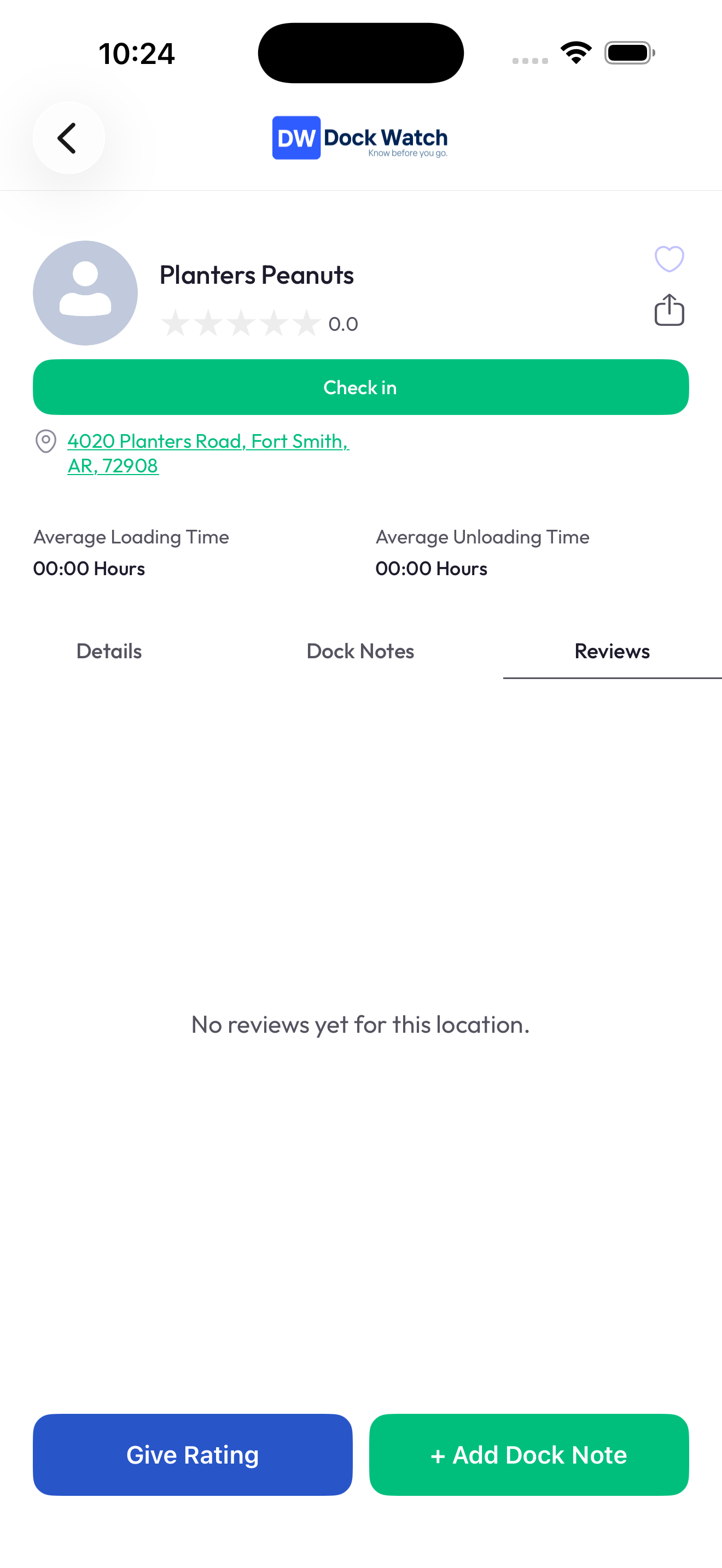
Driver reviews submitted about this facility, split by interaction type (shipper or receiver).
Average Loading / Unloading Times
If other drivers have checked in at this facility, you'll see the average loading time and average unloading time based on real check-in data. This is one of the most useful pieces of info on the screen — it tells you how long you should realistically expect to wait.
Verified & Insured Badges
- Verified — The business has claimed this listing and confirmed it's their facility.
- Insured — The business has an active Certificate of Insurance on file with Dock Watch.
These badges mean a real person from that business is managing the listing and can respond to reviews.